This page walks you through connecting RVAltCtrl to your RV's WiFi network, then finding your way around its internal setup pages. In short, go to https://my.rvaltctrl.com/setup and follow the instructions there, the rest of this page digs into that process in more detail.
Getting Your Device Connected
When you first get a new RVAltCtrl device and power it up, or when you return it to setup mode using the physical button or the Forget Network option on an already set-up device, RVAltCtrl enters Access Point mode, its setup mode. There are two ways to connect to it from there: over Bluetooth, or over WiFi in Access Point mode. Both are described in the sections below, pick whichever is easiest for you.
Once your device is online on your network, the RVAltCtrl Portal at my.RVAltCtrl.com is the primary place to see your device's status and access it, whether you're connected locally or remotely. See RVAltCtrl Portal for more.
Setting Up Over Bluetooth
Video Walkthrough
Prefer to watch instead? Pick your device below for a short video of the whole setup process.
These are short, faster-paced videos. If you'd prefer something slower-paced with more detail, scroll down to the longer format video below.
We also have a longer video that goes into more detail for each device. Use the chapters to skip around to the parts you need.
Step-by-Step Instructions
The easiest way to connect RVAltCtrl to your RV's WiFi is over Bluetooth, using https://my.rvaltctrl.com/setup. That page walks you through the whole process, connecting to RVAltCtrl over Bluetooth, scanning for nearby WiFi networks, and entering your password, all from your phone, tablet, or computer.
This requires a browser that supports Bluetooth. Most desktop and Android browsers, like Chrome and Edge, already support it. On iOS, neither Safari nor Chrome support it, so you'll need a separate Bluetooth-capable web browser app instead, installed from the App Store and used only for this setup process, not for using RVAltCtrl day to day. The setup page includes a link to download one. If you're not sure whether your favorite browser supports it, you can check at caniuse.com/web-bluetooth.
Quick Steps
- Make sure RVAltCtrl is in setup mode, either because it's brand new or because you returned it to setup mode. The middle LED blinks four times, pauses, and repeats when it's ready, with no other blinking in between.
- On your phone, tablet, or computer, go to https://my.rvaltctrl.com/setup in a Bluetooth-capable browser, such as Chrome or Edge. On an iPhone or iPad, use the free Bluefy app instead, since Safari itself doesn't support Bluetooth from a web page.
- Tap Connect to Device, then select
RVAltCtrl-XXXXfrom the list that appears. - Once connected, tap Scan for Networks, select your RV's WiFi (2.4 GHz), enter the password, and tap Connect to WiFi.
- RVAltCtrl joins your WiFi and reconnects to it automatically from then on. The page gives you a direct link to RVAltCtrl's own portal once it's connected.
Setting Up Over WiFi, in Access Point Mode
Quick Steps
- Make sure RVAltCtrl is in setup mode, either because it's brand new or because you returned it to setup mode. The middle LED blinks four times, pauses, and repeats when it's ready, with no other blinking in between.
- On your phone, tablet, or computer, connect to the
RVAltCtrl-XXXXWiFi network RVAltCtrl creates the first time it powers up (passwordGoCamping5678). - A setup page should open automatically. If not, go to
http://RVAltCtrl.localorhttp://192.168.4.1in a browser. - From the Home page, tap "Connect it to your WiFi network," scan for networks, and select your RV's WiFi (2.4 GHz).
- Optionally, set a static IP address here if you'd like RVAltCtrl's address to never change.
- Enter the password and press Connect. RVAltCtrl joins your RV's WiFi and reconnects to it automatically from then on.
- From then on, reach RVAltCtrl at
http://RVAltCtrl.local, or by its IP address if that name doesn't resolve on your network.
Details
In Access Point mode, RVAltCtrl creates its own WiFi network so your phone can connect to it directly, without RVAltCtrl needing to already be joined to your RV's WiFi. The network name looks like RVAltCtrl-XXXX, where XXXX is a short code unique to your device, for example RVAltCtrl-e304. Keep in mind your phone may not have internet access while connected to RVAltCtrl in Access Point mode.
All of this can be done from a laptop computer or tablet just as easily as a phone. You'll just need to briefly switch its own WiFi over to RVAltCtrl's network, the same way the steps below describe for a phone.
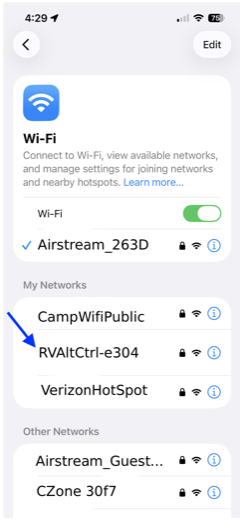
- On your phone, open WiFi settings and find that network in the list.
- Tap it to connect. The default password is
GoCamping5678. - Once connected, your phone will usually open the setup page for you automatically. This is called a captive portal, a page a WiFi network shows a newly connected device on its own, without being asked, the same trick hotel and airport WiFi use to get you to their login page. RVAltCtrl uses it to walk you straight into setup.
- If that page doesn't open on its own, and you're still connected to RVAltCtrl's WiFi, open a browser yourself and go to
http://RVAltCtrl.localin the address bar. If that doesn't work either, use the direct address instead,http://192.168.4.1. Many Android devices will need to use this IP address URL.
Why http:// and not https://? You may notice these addresses aren't secured with the https:// you're used to seeing on the public internet. That's expected, and it's not a security concern, everything here happens directly between your phone and RVAltCtrl over your own local network. Nothing is ever sent over the public internet. HTTPS depends on signed certificates, and certificate authorities can't issue those for local device names like RVAltCtrl.local or private IP addresses like 192.168.4.1, only for publicly registered domain names. That's why home routers, printers, and other local network devices almost always use plain http:// for their own setup pages too, it's the standard way these devices offer an easy setup experience without the browser warnings a self-signed certificate would trigger.
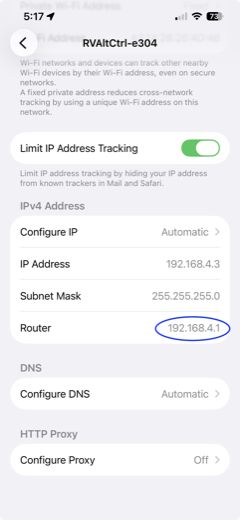
Confirming the device's address. If you ever need to find or double check that address, your phone can tell you. In WiFi settings, tap the info button next to the RVAltCtrl network you're connected to.
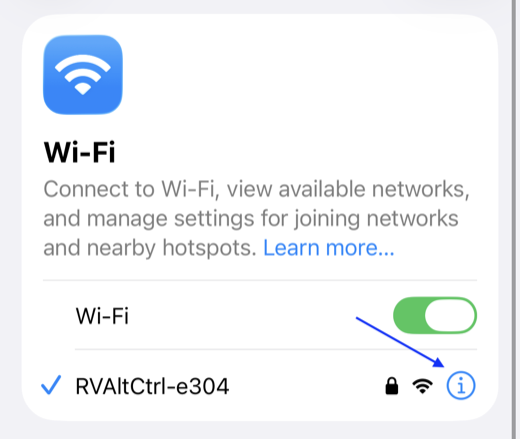
That opens a details screen for the network. The address you want is the one listed next to Router, circled here as 192.168.4.1.
RVAltCtrl Internal Web Setup Pages
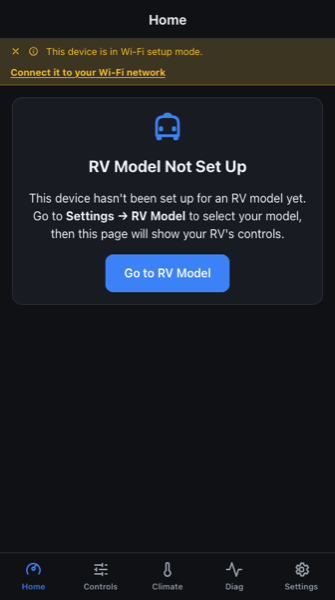
Whether the captive portal opened it for you automatically or you typed in http://RVAltCtrl.local or http://192.168.4.1 yourself in a browser, the page you land on now is RVAltCtrl's Home page, shown here. It's your first look at RVAltCtrl's embedded web pages, the same pages you'll come back to regularly to set up, control, and monitor lights, climate, sensors, and everything else in your RV.
"Embedded" just means the web pages live on a small web server built into RVAltCtrl itself, rather than being hosted out on the internet somewhere. They look and behave like an app, but since they're really just a website, there's nothing to download or install, and no app store version to keep updated. Any phone, tablet, or computer with a web browser can open them. Right now, while RVAltCtrl is in Access Point mode, that means being connected to RVAltCtrl's own WiFi network, as described above. Once you connect RVAltCtrl to your RV's WiFi in the steps below, that switch is no longer needed, your phone, tablet, or computer just needs to be on the same RV WiFi network as RVAltCtrl, same as any other device in the RV. Switching your own device's WiFi over to RVAltCtrl's network is only ever needed for this initial setup, or if you ever need to reconnect RVAltCtrl to a WiFi network again.
Connecting to your RV's WiFi. Tap "Connect it to your WiFi network" at the top of the Home page, or get to the same page from Settings → WiFi.
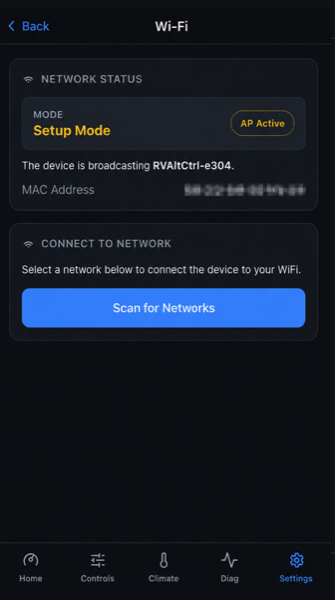
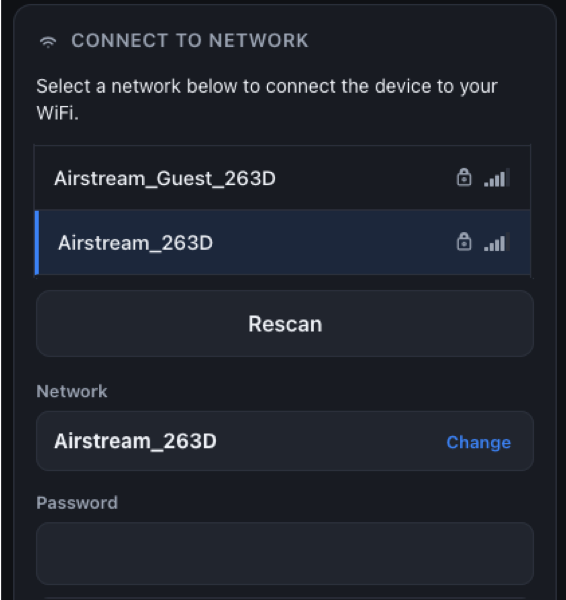
On that page, tap Scan for Networks. The results show every nearby WiFi access point RVAltCtrl can see. Note that RVAltCtrl can only join 2.4 GHz networks, not 5 GHz ones, most routers broadcast both, so look for the 2.4 GHz name if yours are listed separately. Find the main WiFi network your other devices and phones already use in the RV, select it, and enter its password.
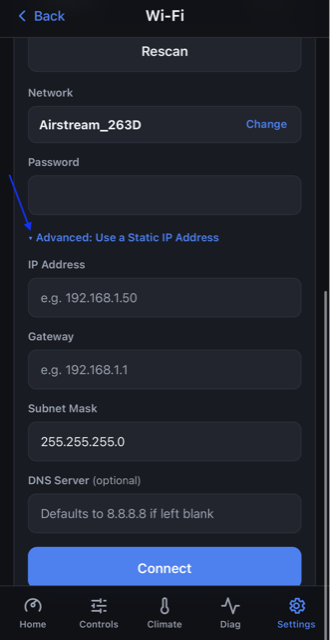
Using a static IP address (optional). Normally your router hands RVAltCtrl an address automatically. A static IP address just means picking one specific address yourself and having RVAltCtrl always use that same one, which can be handy if you want its address to never change. If you do set one, be careful to pick an address that fits your network (it should start with the same first three numbers as your router's own address) and that nothing else on the network is already using, otherwise the two devices can conflict. If you're not sure, it's safest to leave this alone.
Press Connect, and RVAltCtrl will join that network and give you further instructions. From then on, it'll automatically reconnect to this same network every time it boots up.
If you ever need to find RVAltCtrl's address on your RV's WiFi again, you don't need your phone for that, the device's middle LED spells it out. See Status LEDs for how to read it.
Most of the time you can reach RVAltCtrl by name instead, just go to http://RVAltCtrl.local.
How the .local name works, and why it doesn't always. That address is resolved using a discovery protocol called mDNS (multicast DNS), known as Bonjour on Apple platforms. Rather than looking the name up at a central DNS server (the directory service that normally translates website names into addresses) the way a normal website address is, your phone or computer broadcasts a request onto the local network asking who RVAltCtrl.local is, and RVAltCtrl answers directly, no internet connection or DNS server involved. iPhones, iPads, and Macs support mDNS natively, so the .local name almost always works there. Windows and Android support is less consistent, most modern versions handle it fine, but some, along with certain manufacturers' network stacks, don't resolve .local names at all. Some WiFi networks also block the multicast traffic mDNS relies on, this is common on mesh WiFi systems, guest networks with client isolation enabled, and some travel routers, even though regular browsing and other local traffic works fine on those same networks. None of this means anything is wrong with RVAltCtrl, it just means this particular device or network doesn't support mDNS. If RVAltCtrl.local doesn't work on your network, PC, or phone, use its direct IP address instead, found using the middle LED as described in the link above. In cases like this, setting a static IP address for RVAltCtrl makes it much easier to find and bookmark going forward.